Are you looking to unroot your Android device and restore it to its original state? If you’ve used Magisk, a widely trusted tool for gaining root access and customizing your device, you might need to reverse these changes at some point.
Whether you’re preparing for a system update, troubleshooting issues, or want to revert to a stock setup, unrooting is straightforward when you have the right tools.
The Magisk Uninstaller ZIP file is designed specifically for this purpose. It’s a simple and effective way to remove Magisk from your device.
By flashing this file through a custom recovery like TWRP, you can safely unroot your device and restore the system partition to its factory condition, all without losing your data.
In this guide, we’ll walk you through the process of using the Magisk Uninstaller ZIP file step by step. We’ll also provide a direct link to download the latest version of the file, so you can get started quickly and easily. Whether you’re new to rooting or a seasoned pro, this guide will make unrooting your device a hassle-free experience.
What is kitsune Magisk Uninstaller ZIP?
Magisk Uninstaller ZIP is a crucial tool for any Android user who has installed Magisk on their device. As the name suggests, it is a ZIP file that, when flashed through a custom recovery like TWRP, removes all traces of Magisk from your device. This includes the Magisk Manager app, any installed Magisk modules, and any changes made to the system partition by Magisk.
The Magisk Uninstaller ZIP is an essential tool for those who need to revert their device to its original state, either for troubleshooting purposes, to pass SafetyNet checks, or to prepare for an official software update. It’s a failsafe that ensures you can always undo the modifications made by Magisk without causing any harm to your device.
Download Magisk Uninstaller Zip Latest version 27.2
Before we proceed with the steps to uninstall Magisk, the first thing you’ll need is the Magisk Uninstaller ZIP file. Download Magisk Uninstaller 27.4 Zip, just click on the download button below. This file is essential for safely removing Magisk and restoring your device to its original state.
| Software Name | Magisk Uninstaller ZIP |
|---|---|
| Version | Support all |
| Android Version Requirements | 5.0+ |
| File Size | 11.9 MB |
| Developer | Topjohnwu |
Download Magisk Uninstaller Zip Latest version 26.4
Before we proceed with the steps to uninstall Magisk Delta, the first thing you’ll need is the Magisk Delta Uninstaller ZIP file. Download Magisk Uninstaller 26.4 Zip, just click on the download button below. This file is essential for safely removing Magisk and restoring your device to its original state.
| Software Name | Magisk Uninstaller Zip |
|---|---|
| Last Updated | November 6, 2023 |
| Version | 26.4 |
| Android Version Requirements | 6.0+ |
| File Size | 11.9 MB |
| Developer | Topjohnwu |
How to Uninstall Magisk and Unroot Android Device
If Magisk is not properly installed on your device or you don’t want to use it anymore, then you can easily and completely uninstall it by following some basic steps. There are two ways you can uninstall and unroot your device.
- Using Magisk Uninstaller zip and TWPR
- Using Magisk Manager application
How to Uninstall Magisk Using TWRP Recovery
NOTE: Before we proceed, don’t forget to disable and remove all the modules from the Magisk Manager first.
Step 1: Boot into TWRP Recovery

Boot your device into TWRP Recovery Mode. First, ensure your device is powered off. Then, like booting into standard recovery mode, hold the power + volume up combination of buttons to enter TWRP Recovery.
Step 2: Access the File Manager in TWRP
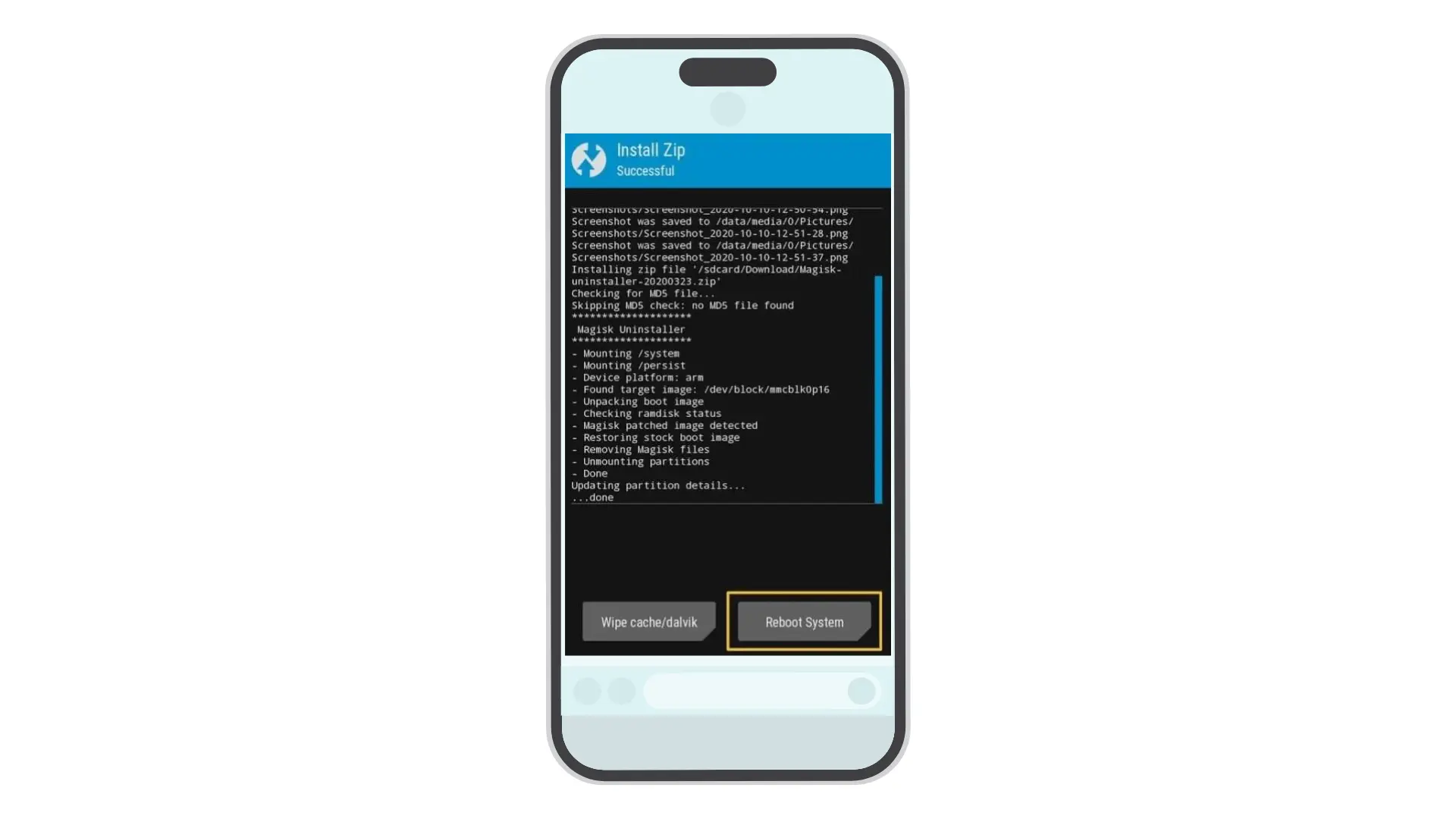
Navigate to the location of the Magisk Uninstaller Zip. Select the file, then you will be taken back to the previous screen with the option to ‘Swipe to confirm Flash’ at the bottom. Swipe along this bar to start the uninstallation process. The process may take a moment, but a successful flash will result in a confirmation message.

Step 3: Reboot System
Return to the main menu once the Magisk Uninstaller Zip File has been successfully flashed. Tap on “Reboot,” then “System.” Your device will then restart, and upon rebooting, Magisk should be fully uninstalled from your device.
Uninstalling Magisk using the default uninstall option
Step 1: Open Magisk Manager
Start by opening the Magisk Manager application on your device. This is the app you used when you initially installed Magisk, and it’s the central hub for managing your root access.
Step 2: Access the Uninstall Option
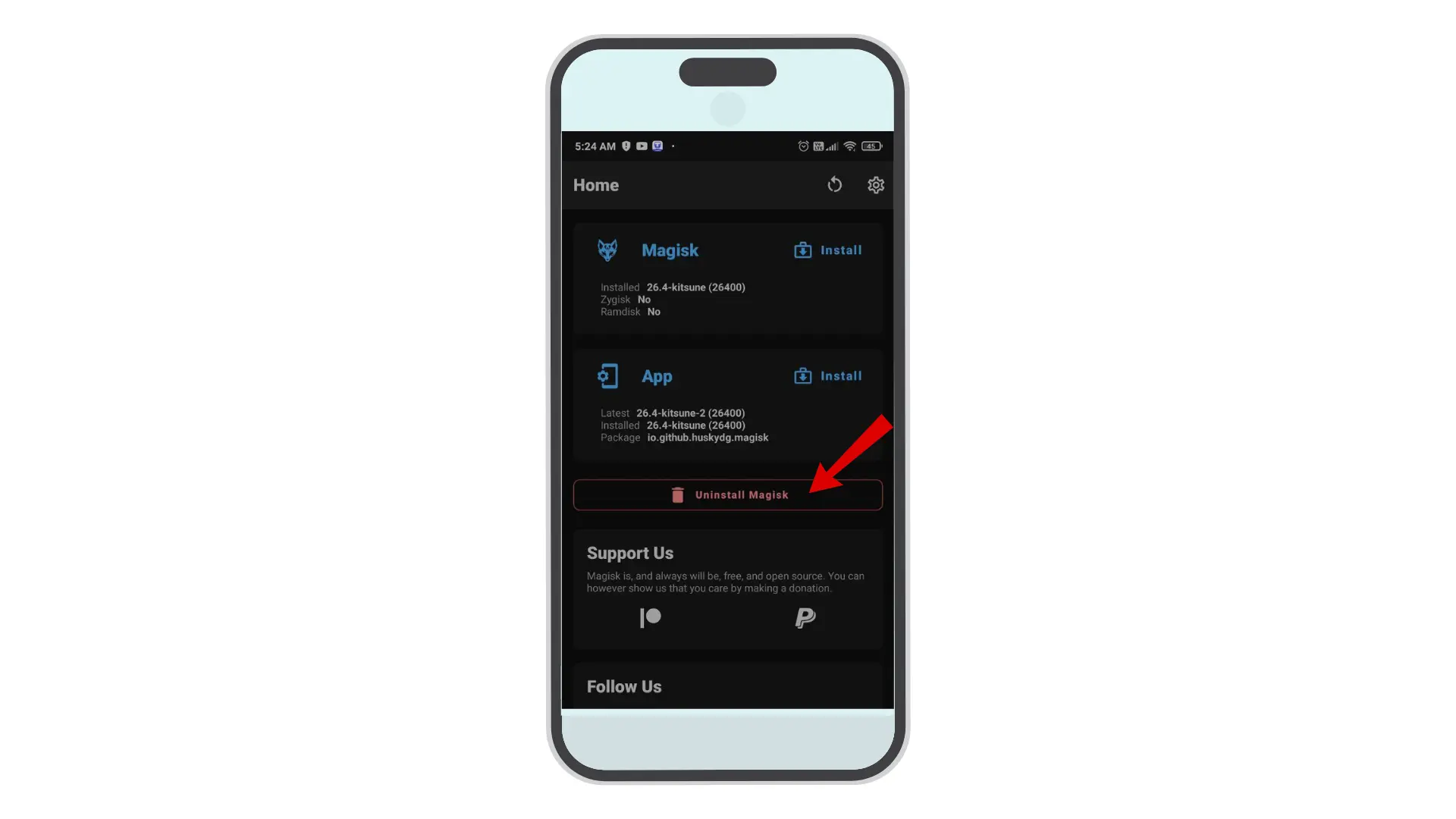
Once you have Magisk Manager open, you will need to access the uninstall option. To do this, tap on the “Uninstall” button. This option is usually located in the main interface of the Magisk Manager app.
Step 3: Confirm Uninstall
After tapping on the “Uninstall” button, you will be asked to confirm your decision. This is a safety measure to prevent you from accidentally uninstalling Magisk. To confirm the uninstallation, tap on “Complete Uninstall.”
Step 4: Wait for the Uninstall Process
After confirming the uninstallation, the process will begin. During this time, Magisk Manager will remove all traces of Magisk from your device. This includes eliminating root access and any modules you might have installed. This process might take a few minutes, so be patient.
Step 5: Reboot Your Device
Once the uninstall process is complete, you’ll need to reboot your device. This is an important step because it allows your device to finalize the changes and completely remove any remaining traces of Magisk. To do this, simply hold down the power button on your device, then select “Restart” or “Reboot.”
Magisk Uninstaller FAQ: Everything You Need to Know
1. How do I uninstall Magisk using the Magisk Uninstaller ZIP?
The Simple Or easiest way to uninstall Magisk is by using the Magisk Uninstaller ZIP file through your custom recovery (TWRP). Simply download the uninstaller ZIP, flash it in recovery mode, and Magisk will be completely removed from your device. This method ensures all traces of Magisk are deleted, including root access and modules.
2. Why Should I Use the Magisk Uninstaller ZIP?
The Magisk Uninstaller ZIP provides a clean, efficient way to remove Magisk, particularly when compared to manual uninstallation methods. By flashing the uninstaller ZIP through a custom recovery, you ensure that all elements of Magisk, including the root access, modules, and changes made to the boot image, are completely removed from your device.
3. Can I Reinstall Magisk After Uninstalling?
Yes, you can reinstall Magisk anytime after uninstalling it. Simply download the latest version of Magisk and follow the regular installation process, either through the Magisk Manager app or by flashing the Magisk ZIP file in recovery mode.
4. What if the Magisk Uninstaller ZIP Doesn’t Work?
In rare cases, if the Magisk Uninstaller ZIP fails to work or you encounter errors during the flashing process, try the following solutions:
If problems persist, you may need to perform a factory reset or reflash the stock boot image to fully remove Magisk.
- Reboot into recovery mode and try flashing the ZIP again.
- Ensure you are using the correct, latest version of the uninstaller ZIP.
- If problems persist, you may need to perform a factory reset or reflash the stock boot image to fully remove Magisk.
5. How do I know if Magisk is completely uninstalled?
Check using a root checker app or see if the Magisk app is still present. If both fail, it’s removed.
6. Which is better: Magisk or Kitsune Magisk?
Kitsune Magisk offers more updates and better compatibility, making it the preferred choice today.