Magisk is a popular tool for rooting Android devices, but there are times when you may need to uninstall it, whether to restore your device to its original state or to resolve compatibility issues with certain apps. The Magisk Uninstaller ZIP is the most reliable method to completely remove Magisk and unroot your device. Below, we’ll guide you through the process step-by-step.
What is Magisk Uninstaller ZIP?

The Magisk Uninstaller ZIP is a specially designed file that removes all traces of Magisk from your Android device. Unlike simply uninstalling the Magisk app, this method ensures a complete unrooting process, making your device appear as if it were never rooted. This is particularly useful for passing SafetyNet checks or using apps that block rooted devices.
Why Use Magisk Uninstaller ZIP?
- Complete Unrooting: It removes all Magisk-related files, ensuring no residual data is left behind.
- Safe and Reliable: Flashing the ZIP file via TWRP recovery is a proven method to avoid errors or boot loops.
- App Compatibility: Unrooting allows you to use apps that don’t support rooted devices, such as banking or streaming apps.
Magisk Uninstaller Zip Download (Latest Version File)

| Software Name | Magisk Uninstaller ZIP |
|---|---|
| Version | Magisk delta / Magisk Manager |
| Android Version Requirements | 5.0+ |
| File Size | 11.9 MB |
| Developer | Topjohnwu |
How to Download Magisk Uninstaller ZIP File
- Visit a trusted source like the official Magisk GitHub page or Magiskdeltazip.com, above the latest Magisk Uninstaller ZIP file, or an old version
- Look for the latest version of the Magisk Uninstaller ZIP (e.g., v29.0).
- Download the Uninstaller Magisk ZIP file to your device
How to Uninstall Magisk Root using TWRP Recovery
1. Prepare Your Device
- Ensure your device has TWRP recovery installed.
- Back up your data to avoid any accidental loss.
- Charge your device to at least 50% to prevent interruptions.
2. Boot into TWRP Recovery
- Power off your device.
- Press and hold the specific key combination (e.g., Volume Down + Power) to boot into TWRP.
3. Flash the Magisk Uninstaller ZIP
- In TWRP, select the “Install” option.
- Navigate to the downloaded Magisk Uninstaller ZIP file.
- Swipe to confirm the flash.
4. Reboot Your Android Device
- Once the flashing process is complete, tap “Reboot System.”
- Your device will restart, and Magisk will be completely removed.
Alternative Method: Uninstall Magisk Root via Magisk App
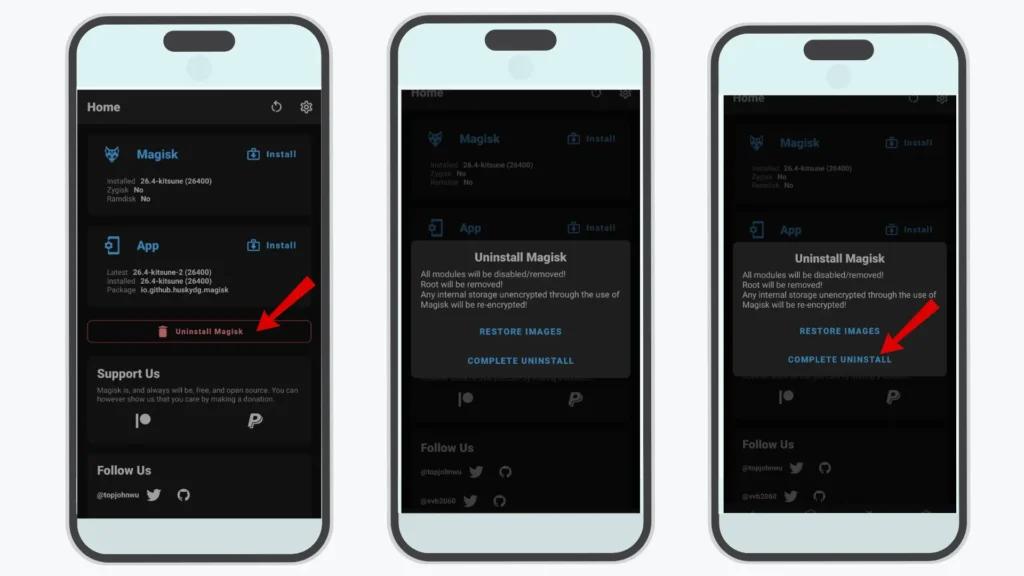
If you don’t have TWRP installed, you can use the Magisk app to uninstall:
- Open the Magisk app.
- Go to “Settings” and disable Zygisk (if enabled).
- Select “Uninstall Magisk” and choose “Complete Uninstallation.”
- Follow the on-screen instructions to finish the process.
Conclusion
Magisk Uninstaller ZIP is the safest and most effective way to completely remove Magisk from your Android device. Whether you’re switching to a different rooting method or need to unroot for app compatibility, following the steps above will ensure a smooth and error-free process. Always download the ZIP file from trusted sources and back up your data before proceeding.