Magisk, the powerful tool that has earned its place in the hearts of many Android enthusiasts for its root access and Magisk module support, sometimes needs to be uninstalled.
This might be due to compatibility issues, a desire for a cleaner system, or to install an OTA update. However, the procedure to uninstall Magisk can seem daunting.
Are you looking to remove Magisk Delta (Kitsune) and restore your Android to its default state? You’ve come to the right place.
Whether you’re troubleshooting, preparing for OTA updates, or simply moving away from root customization, this guide gives you easy-to-follow steps plus expert insights to get it done safely.
How to Uninstall Magisk from Your Android Device (2025)
1. Open the Magisk Delta App and Uninstall Directly
For most users, the fastest and safest method is to use the built-in uninstall feature:
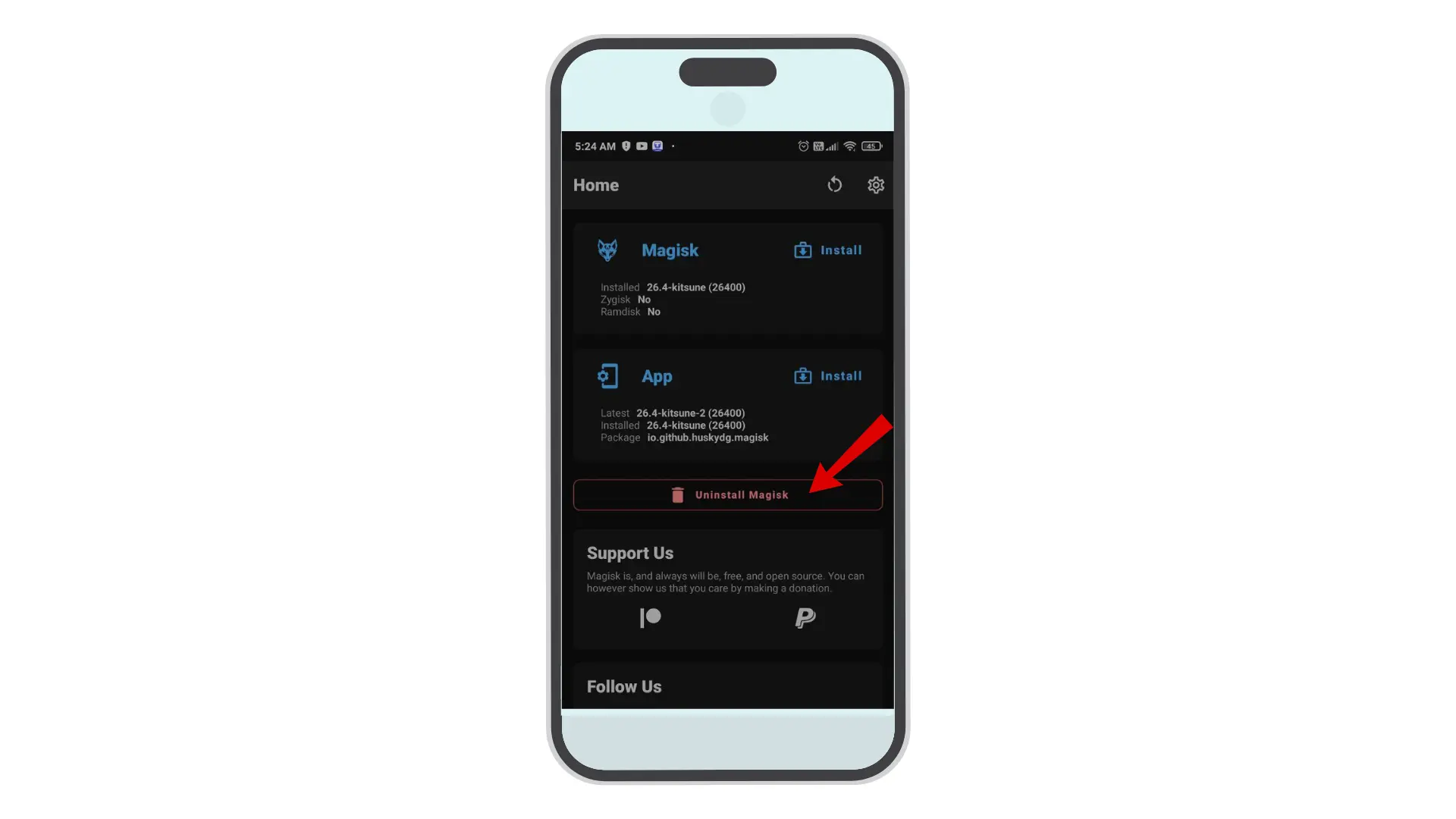
- Open the Magisk Delta app on your device.
- Navigate to the Uninstall section.
- Tap Complete Uninstall and follow any prompts.
- The app will download its uninstaller file, perform the cleanup, and reboot your phone automatically.
Uninstall Magisk Using TWRP Recovery: TWRP Recovery (Recommended for Clean Removal)
If you’ve manually removed Magisk and ended up in a boot loop, don’t worry — you can safely uninstall it using TWRP Recovery. This is the most reliable and recommended way, recognized by developers and power users alike.
Steps to Uninstall Magisk via TWRP:
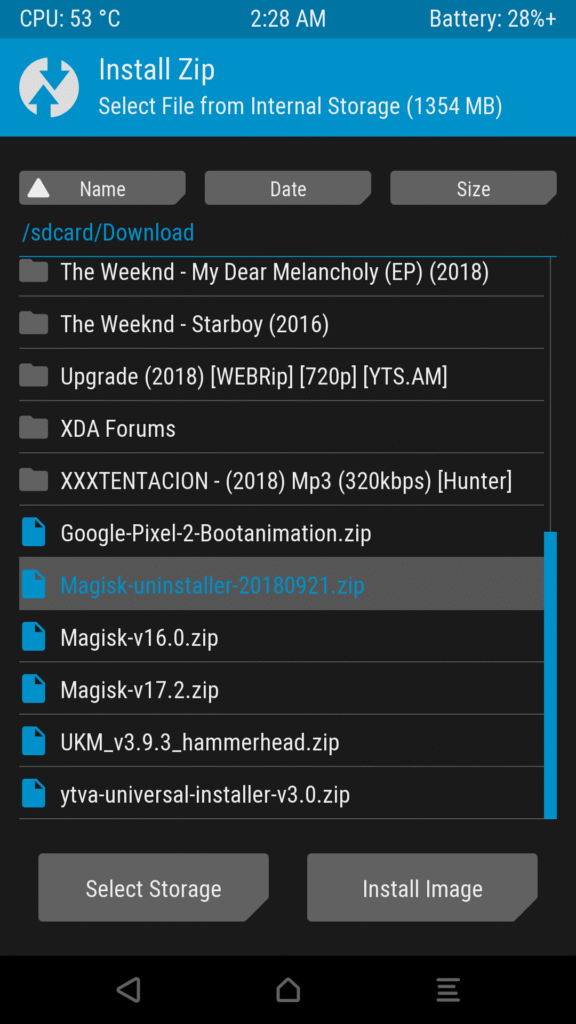
- Download the latest Magisk App (.apk) and move it to your phone’s internal storage.
- Rename the file from
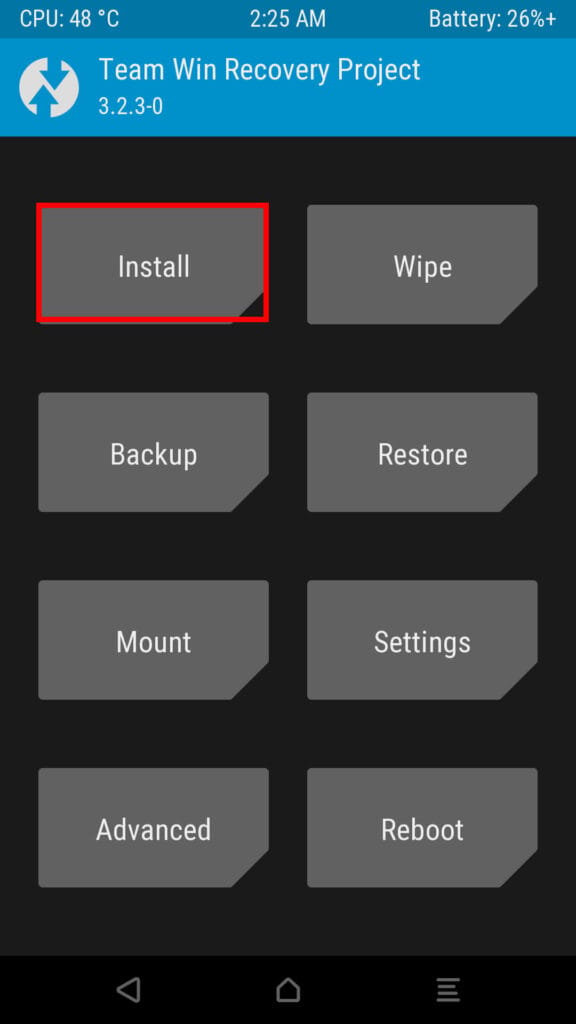
Magisk-v27.0.apk→uninstall.zip. - Power off your phone and boot into TWRP Recovery (hold Volume Down + Power).
- In TWRP, tap Install, locate the
uninstall.zipfile, and swipe to confirm flash. - Wait for the process to complete, then reboot your device.
Frequently Asked Questions (FAQs)
1. What will happen to my device after I uninstall Magisk?
After uninstalling Magisk, your device will no longer have root access. All modules and modifications made using Magisk will also be removed.
2. Can I reinstall Magisk after uninstalling it?
Yes, you can reinstall Magisk at any time using the same process as the initial installation.
3. Will uninstalling Magisk erase my data?
The uninstallation process itself shouldn’t erase any personal data. However, it’s always a good idea to back up important files before making significant system changes.
4. Will uninstalling Magisk Delta delete my apps or data?
Nope—your user data stays intact. Just avoid wiping the data partition unless you’re planning a full system reset.
5. Can I reinstall Magisk after uninstalling Magisk Delta?
Absolutely. Uninstalling doesn’t affect your ability to root again later—just download and install a fresh build of your chosen root solution.
6. What if the app uninstall method doesn’t work?
Try the Uninstaller ZIP via recovery—that’s far more reliable for messy installations or stubborn issues.
Conclusion
Removing Magisk Delta from your Android in 2025 is easy, safe, and reliable. Just open the app to use the built-in uninstall option, or go the extra mile with the recovery-based ZIP for a comprehensive cleanup. Either route ensures a smooth return to unrooted stability.